
 Data Recovery Software
 Hard Drive Data Recovery
 SSD Data Recovery
 Deleted File Recovery
 Pen Drive Gone Blank
 Memory Card Not Opening
 External Hard Disk

Forensic Data Recovery: Write Blocking, Images And Hashes
Ordinary data recovery has one goal: get the files back. Forensic data recovery has two. You still need the files, but you also need to show, later and to people who were not in the room, that the drive was not changed, that your copy matches it and that someone repeating your steps would reach the same result.
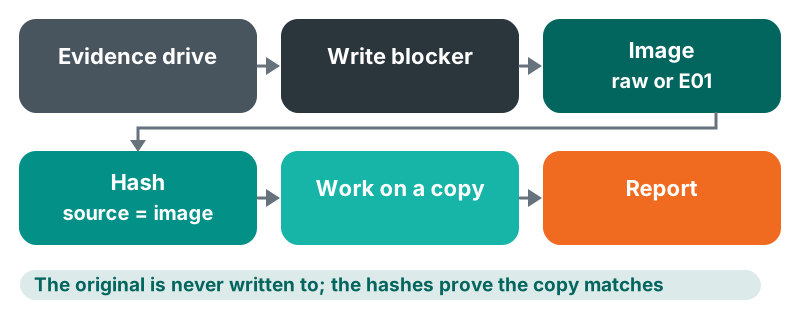
That second goal changes how the work is done. Writes are blocked before the drive is read. The drive is read once into an evidence image, the image is hashed and verified and every search runs on the copy. Notes and reports tie it together.
This guide walks through that workflow for investigators, IT teams and recovery labs and shows where DRE Pro fits and where it does not. If disk images are new to you, start with our guide to what a disk image is and when to make one.
Why Forensic Recovery Differs From Ordinary Recovery
In a normal recovery, the result is good if the files open. Nobody asks whether the scan changed a timestamp on the drive or whether a second scan next month would list exactly the same files. In forensic work those questions decide whether the result can be relied on.
Three ideas run through everything that follows. Integrity: the original is not changed and you can show that it was not. Repeatability: another examiner, starting from the same image, can follow your steps and get the same answer. Documentation: what was done, when, by whom and how is written down as it happens. The order that serves all three is simple: protect, copy, verify, then examine.
Hardware And Software Write Blocking
A computer writes to drives more often than people expect. Windows may update a volume when it mounts it, background programs open files to index or check them and a careless double-click can change a file's dates. A write blocker stops all of that.
A hardware write blocker is a separate device between the drive and the computer. It filters the commands that reach the drive, whatever the computer's software does.
A software write blocker works inside the operating system. DRE Pro has one. Choose a drive and Windows refuses every write to it, to files, partitions or raw sectors, from any program, Windows itself included, until the block is removed. Anything Windows is still holding for the drive is written out first, so nothing in progress is lost. The state on screen is always read back from Windows and the block can be kept after a restart.
Be clear about what it cannot guarantee. DRE Pro's Write Blocker is not a hardware blocker and has no kernel driver. A program running as administrator can remove it. The moment the drive is plugged in, before the block is applied, is not covered and unplugging and reconnecting the drive can remove it. It cannot be used on the disk Windows or DRE Pro runs from, a disk with a page file, a volume spread over several disks or Storage Spaces. And no software can stop the drive's own firmware from moving data internally, such as wear levelling on an SSD or sector remapping on a hard disk.
Evidence Images: Raw Or E01
Once the drive is protected, read it once into an evidence image and put the original away. DRE Pro's Create Disk Image writes several formats; two matter most for evidence.
A raw image is the plainest copy: every sector of the drive, in order, with nothing added. It is the same size as the drive and almost any tool can read it. It can be split into numbered segments (.001, .002 and so on) and in DRE Pro a raw image that was stopped can be resumed.
E01 is the Expert Witness Format, made for evidence. DRE Pro's E01 images are compressed, with fast or best compression run on every processor core. They store the MD5 and SHA-1 of the data inside the file and carry the case details: case number, evidence number, examiner and notes. Because the details and hashes travel inside the image, the copy still describes itself if it is separated from your paperwork. An E01 can be one file or split into .E01, .E02 segments; segment sizes run from 650 MB to 32 GB, with 4 GB for a FAT32 destination.
One difference affects planning. An E01 cannot be resumed after a stop, because its compressed chunks are written in order. A stopped E01 is still finished so that it opens, but it does not hold the whole drive. For a drive that may drop out during the copy, a resumable raw image is often the safer first choice.
Create Disk Image also writes VHD, VHDX, VMDK and VDI virtual disks. For a copy to keep, raw, E01, VHD and VHDX are the tested choices; VMDK and VDI have not yet been opened in other virtual machine software in DRE Pro's tests.
Hashes: What They Prove And How Verification Works
A hash is a short fingerprint calculated from every byte of the data. Change one bit and the hash changes completely. If your image's hash equals the source drive's, the two hold the same data. If a hash recorded on the day of acquisition still matches months later, the image has not changed since.
A hash proves sameness, nothing more. It does not show who made the copy or when and it does not prove the data is complete: an image with unreadable gaps has a hash too.
MD5, SHA-1 and SHA-256 all detect accidental change, such as a bad cable or a failing destination disk. MD5 and SHA-1 are old and ways to give two different inputs the same value are publicly known for both, so on their own they are weak protection against deliberate tampering. SHA-256 has no such known weakness.
DRE Pro's Hash & Verify works out MD5, SHA-1, SHA-256 and SHA-512 of a file, an image or a whole drive in one read, so extra algorithms add little time. Paste a value you were given and it compares the two. For an image, it can hash the disk inside the image rather than the file, so a raw image and an E01 of the same drive give the same hash.
Verification happens twice. When an image finishes, DRE Pro reads it back and checks it. Later, before you rely on the image, hash it again and compare with the value in your notes. A match means you are examining the image you made.
Work Only From The Image
Once the image is verified, the original goes back in its bag. Every scan, search, preview and export runs on the copy. If something goes wrong, such as a crash or a wrong setting, make a fresh working copy from the verified image and start again rather than reading the original a second time.
In DRE Pro an image opens under Drives And Locations like a drive and Quick Scan, Deep Scan and RAW Scan run on it as they would on the drive. The Folder Tree reads an NTFS volume's whole MFT from the image and shows live and deleted files in their original folders, with sizes, dates and a recovery status for each; other file systems are read from their own records. The MFT is only read, never repaired or written.
Resume Scan carries on a stopped scan and refuses an image that has changed since, so results from two different copies are not mixed. Save recovered files to a third disk, never to the evidence drive. To check thousands of recovered files, the Damage File Organizer grades them read-only and writes any repaired copies separately.
Documenting The Case
Good documentation is written while the work happens. A useful case record covers:
- Receipt: who handed over the drive, when and its condition and labels.
- Protection: which write blocking was used, hardware, software or both and when it was applied.
- Acquisition: image format, file names, segments, destination disk, start and finish times and any read errors.
- Hashes: every value, its algorithm, what it was calculated from (the drive, the image file or the disk inside the image) and when.
- Examination: each scan, its type, the image it ran on and what it found.
- Output: what was saved or exported, where it went and who received it.
Privacy In Reports
Reports travel: they get forwarded and printed. A report should hold what its reader needs and nothing more.
DRE Pro's HTML reports leave out drive serial numbers, volume IDs, device identifiers and your user folder. For an encrypted drive, a report says how it was unlocked, never with what. Every file name is escaped and the page carries a Content Security Policy, so a file name crafted to look like code cannot run as script. The report is saved on a different drive from the one scanned.
If your case record needs the drive's serial number, write it in your own notes or on the evidence label. Identifiers belong in the case file, not the shared report.
Encrypted Drives
Encryption changes the order of work only slightly: image the encrypted drive as it is, then unlock the copy. The image is still encrypted, sector for sector, so nothing is lost by imaging first and the original is read only once.
DRE Pro unlocks BitLocker, VeraCrypt and TrueCrypt, LUKS1 and LUKS2, FileVault on APFS and Core Storage with the owner's password, recovery key or key file, on a connected drive or inside a raw, E01, VHD(X), VMDK, QCOW2 or DMG image. It decrypts in memory as it reads, so the encryption on the drive or image stays as it was. The key is never saved, logged or put in a report.
Without the key, the data cannot be read by DRE Pro or by any honest tool. DRE Pro does not guess, crack or bypass passwords.
Common Mistakes
- Plugging the evidence drive into an ordinary port just to see what is on it, before any write blocking.
- Relying on a software blocker alone where your procedures require a hardware one.
- Scanning the original drive instead of the image or recovering files back onto it.
- Recording a hash without saying what it came from: the drive, the image file or the disk inside the image.
- Trusting MD5 alone where deliberate tampering is a concern.
- Choosing E01 for a drive that keeps disconnecting, then finding the copy cannot be resumed.
- Writing notes at the end of the day instead of as the work happens.
A Step-By-Step Lab Workflow
One practical order of work. Your own procedures come first.
- Receive and record: who brought the drive, when, its labels and its condition.
- Prepare a separate, healthy destination disk with more free space than the source drive's full size.
- Block writes: a hardware write blocker where your procedures require one and DRE Pro's Write Blocker on the drive before anything else reads it.
- Choose E01 to keep the case details and hashes inside the image or raw when the drive is slow, clicking or disconnecting and the copy may need resuming.
- Open Disk Tools, choose Create Disk Image, pick the source and destination and for an E01 fill in the case number, evidence number, examiner and notes.
- Let DRE Pro read the finished image back and check it. Note any unreadable areas.
- In Hash & Verify, hash the disk inside the image; on a healthy source, hash the drive as well and compare. Record each value with its algorithm and time.
- Disconnect the original and store it sealed.
- Open the image under Drives And Locations, unlock it if encrypted and use the Folder Tree, Quick Scan, Deep Scan or RAW Scan as the case needs.
- Recover to a third disk, away from the evidence drive and the image.
- Export the HTML report, read it before it goes anywhere and file it with your notes and the hashes.
- Hash the image again before handover and confirm the value has not changed.
Is A Software Write Blocker Enough For Forensic Work?
It depends on what your work requires. DRE Pro's Write Blocker stops writes from every program on the PC, but an administrator can remove it and the moment of plugging in is not covered. Where your procedures or a court call for a hardware write blocker, use one, with the software block as an extra layer.
Why Do A Raw Image And An E01 Of The Same Drive Have Different Hashes?
The files differ: one is compressed and carries case details, the other is not. The data they hold is the same. In Hash & Verify, hash the disk inside each image rather than the file and both give the same value.
Which Hash Algorithm Should I Record?
Record SHA-256 at least, since MD5 and SHA-1 have publicly known weaknesses against deliberate tampering. Recording MD5 and SHA-1 as well lets the image be checked against older records. DRE Pro works out all of them in one read.
Which DRE Pro Edition Includes The Forensic Tools?
The Write Blocker, Hash & Verify with MD5, SHA-1 and SHA-512 and opening E01 and memory images come with the Enterprise edition. Professional makes disk images, E01 included and records their SHA-256. See the pricing page for current plans.