
 Data Recovery Software
 Hard Drive Data Recovery
 SSD Data Recovery
 Deleted File Recovery
 Pen Drive Gone Blank
 Memory Card Not Opening
 External Hard Disk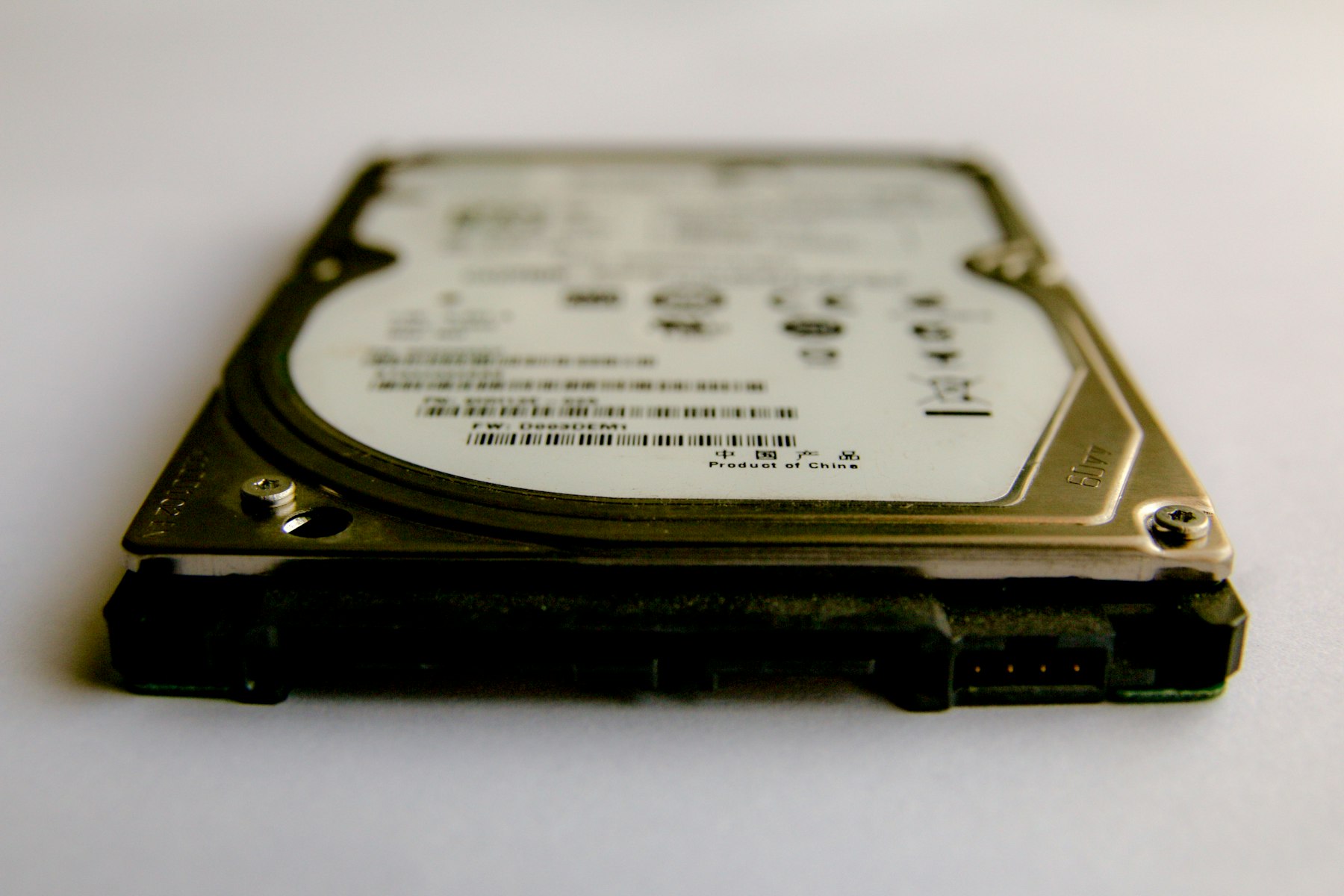
Hard Disk Not Showing In This PC: Check These Before Anything Else
You plug in the external disk, the light comes on and This PC shows nothing. Before you search for hard drive recovery, slow down. Half the time the disk is fine and Windows is simply not showing it. The other half, the disk needs help, and the worst thing you can do is click whatever Windows suggests.
Cable, Port And Power
- Try a different USB cable. Thin cables and worn connectors fail quietly, and the light can still glow on a cable that cannot carry data.
- Plug it straight into the computer, not a hub. On a desktop use a port at the back.
- A 3.5 inch external disk needs its own power adapter. Check it is plugged in and listen for the disk spinning up.
- Try another computer. If the disk shows there, the problem is this computer and not the disk.
Look In Disk Management
Right-click the Start button and open Disk Management. Scroll down past the C: drive. If your disk is listed with its full size but no letter, right-click the partition and choose Change Drive Letter and Paths. That alone fixes a surprising number of cases of an external hard drive not detected in Explorer.
If the partition shows as RAW or Unallocated, stop. Do not initialise the disk, do not format it and do not run CHKDSK. Each of those rewrites the start of the disk and turns a disk Windows cannot read into one with genuinely missing files. If the disk is not in Disk Management at all, or shows a size of 0 bytes, Windows cannot talk to it, and the next section applies.
Listen To It
Hold the disk near your ear. A healthy disk spins up with a soft whirr and settles. A repeating click, a grinding sound or a beep means the heads or the motor are in trouble. Unplug it. No software reads a disk that cannot spin, and every power-on takes something from it. That is a job for a lab with a clean room, which is a different service from anything a programme can do.
When Windows Sees It But Cannot Open It
This is the common case and the one software handles. The disk shows in Disk Management as RAW, Explorer asks you to format it or the drive opens and the folders are empty. Open DRE Pro and look under Drives And Locations. A disk Windows cannot read usually still appears there under External Drives, with its model name and size. DRE Pro reads it directly, without needing a drive letter or a working file system.
- Open Drive Health first. If the status is Warning or Failing, do not scan the disk directly. Use Make An Image Of A Drive to copy it once to a healthy disk, then use Scan This Image.
- If the health is fine, run a Quick Scan. If your folders show, preview them and save to another drive.
- If the partition itself has vanished, run Lost Partition Recovery. It looks for partitions that were deleted or lost, with their folders inside.
- If nothing else works, run a Deep Scan. It reads every sector and does not need the file system at all.
What To Expect From Hard Disk Data Recovery Software
Nobody honest can promise your files back. What hard disk data recovery software can do is read what is still physically on the disk and show you each file before you save it, marked Good, Risky or Overwritten. DRE Pro only reads the source disk and refuses to save onto it, so trying costs you nothing but time. If the preview shows your files, you are most of the way there.
Afterwards
Once your files are safe on another drive and you have opened a few from their new place, you can format the disk and keep using it, or retire it if Drive Health said Warning. A disk that disappeared once will usually do it again. Keep a second copy of anything that matters.