 Data Recovery Software
 Hard Drive Data Recovery
 SSD Data Recovery
 Deleted File Recovery
 Pen Drive Gone Blank
 Memory Card Not Opening
 External Hard Disk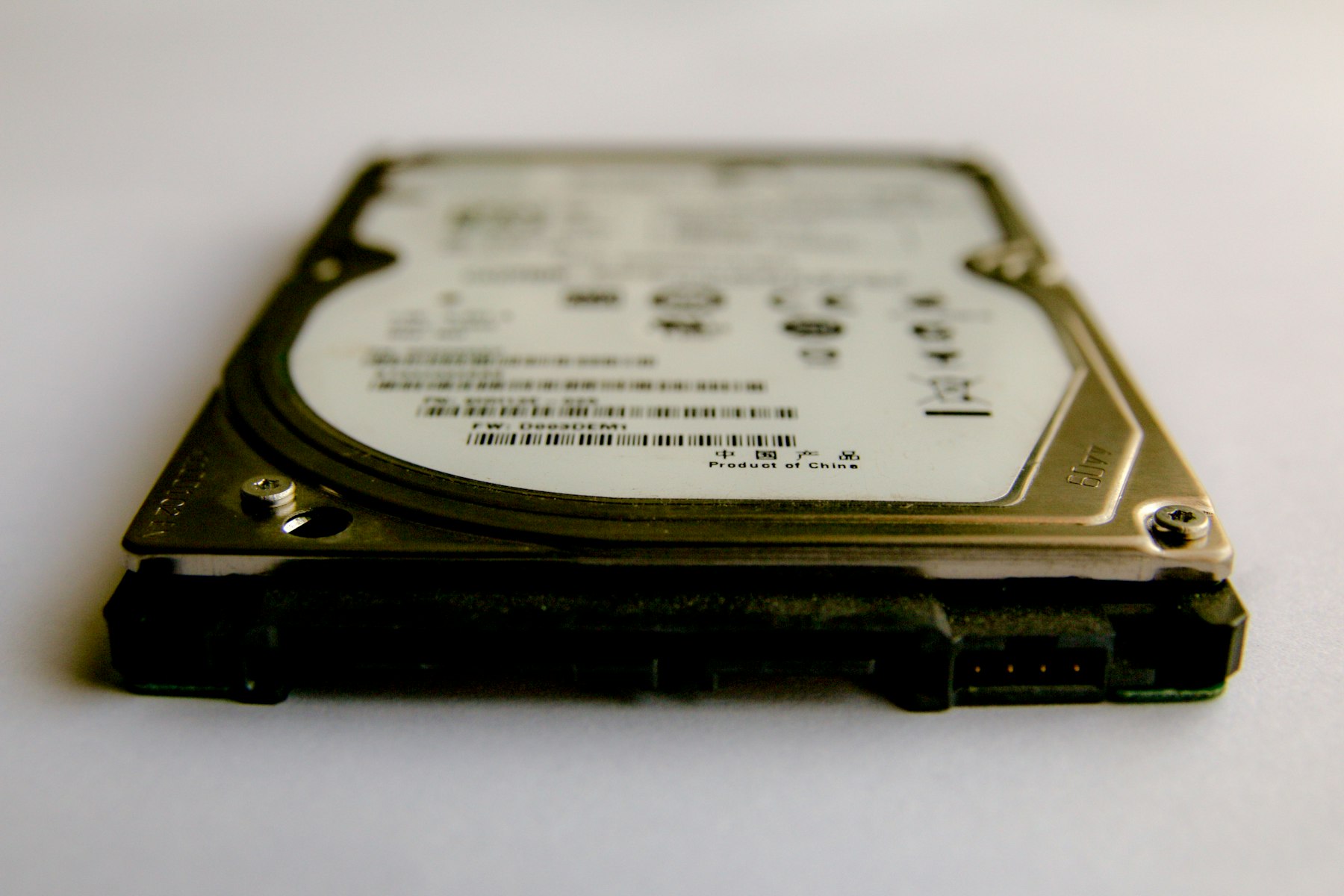
Quick Format Or Full Format
This one detail decides everything. A quick format only rebuilds the index, which is why it finishes in seconds. A full format in Windows also writes zeros over the whole drive, which is why it takes so long.
If you clicked Format and it was done almost at once, that was a quick format and your chances are good. If it ran for a long time with a progress bar, the drive was overwritten.
The Order That Works
- Connect the drive and open DRE Pro. Pick it under Drives And Locations, or pick Entire Disk to read the whole device.
- Choose Deep Scan. Leave All Types ticked unless you only want photos or documents.
- Watch files appear as the scan reads the drive. Damaged photos and videos are repaired while the scan runs.
- Need the computer back? Pause the scan. Under Saved Scans you can resume it later, even after a restart.
- Preview what you need, tick it and save it to another drive.
Names May Change, Files Do Not
Files found by their contents sometimes come back without their old names or folders, because those lived in the index that the format replaced. The photo is the same photo. Sort by type and date, preview and you will know your files when you see them.
Formatted a pen drive or card in a camera or phone? The same rules apply. Most devices do a quick format.
When It Will Not Come Back
We would rather tell you now than after you have paid.
- A full format wrote zeros over the drive. After that, nothing can come back.
- New files were copied onto the drive after the format, over the places the old ones used.
- An SSD was formatted in Windows. SSDs clear their blocks during a format, so the old files are usually gone.
 PhotosJPG, PNG, HEIC, RAW
 VideosMP4, MOV, AVI, MKV
 AudioMP3, WAV, FLAC, M4A
 DocumentsPDF, DOCX, XLSX, PPTX
 EmailsPST, MSG, EML
 ArchivesZIP, RAR, 7Z
 Other FilesEverything Else