
 Data Recovery Software
 Hard Drive Data Recovery
 Pen Drive Gone Blank
 Memory Card Not Opening
 External Hard Disk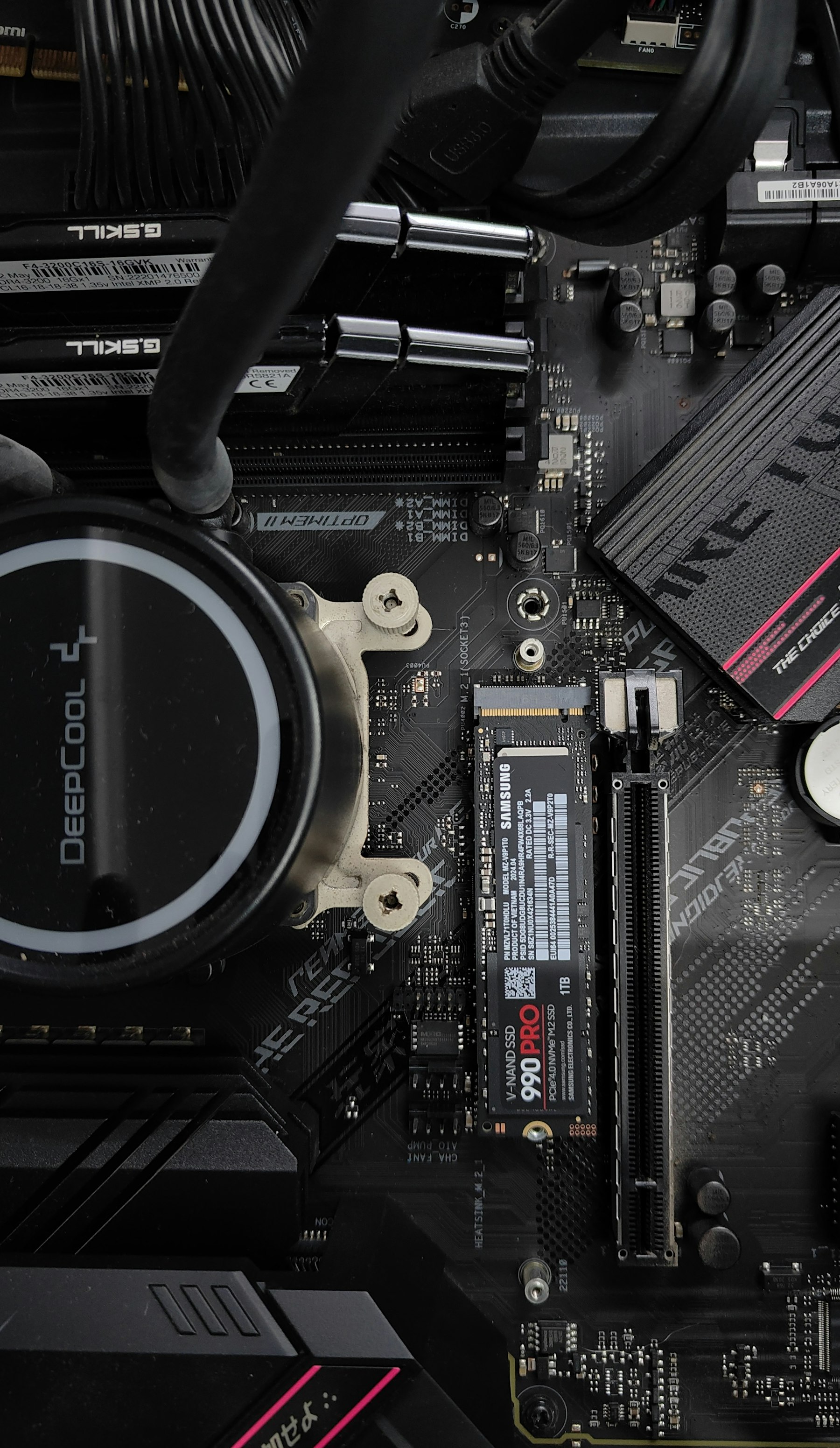
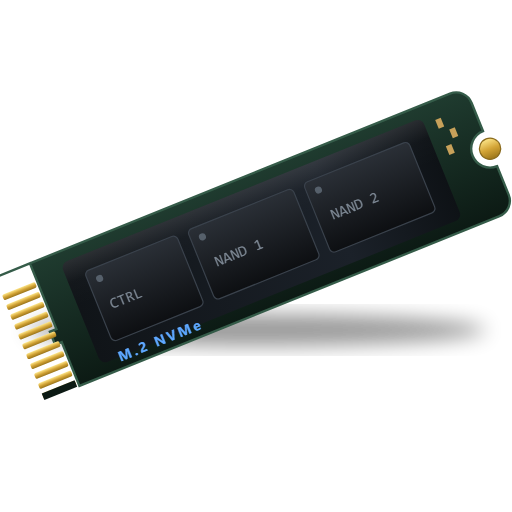
SSD And NVMeScan Today. Tomorrow May Be Too Late.
SATA SSDs and M.2 NVMe drives are quick, quiet and tough. They also clean up after themselves. When you delete a file, Windows tells the SSD those blocks are free and the drive may clear them soon after. That makes speed the most important part of SSD recovery.
SSDs in Windows computers use NTFS. External SSDs are often exFAT. DRE Pro reads both.
Reads the drive's own index. Recently deleted files come back with their names and folders.
Start with a Quick Scan for anything deleted recently. Switch to a Deep Scan if the files are not in the list.
The Tools That Help Here
Start a scan right away and DRE Pro tells you honestly what is still there.
Each file is marked Good, Risky or Overwritten, so you know before you pay.
Drive Health shows whether TRIM is enabled, plus health, temperature and power-on time.
Partition Recovery looks for partitions whose entries were lost.
Worth Knowing Before It Happens
- Scan the same day. On an SSD, waiting is the biggest risk.
- Turn the computer off if you cannot scan right now. A drive that is off is not clearing blocks.
- Back up an SSD you care about. When it fails, it often fails all at once.
What Happened To Yours?
Every Situation
Deleted By Mistake
Shift+Delete, or a Recycle Bin you already emptied
Partition Lost
A drive letter gone from This PC
Windows Reinstalled
A fresh install took the old files
Other Drives
Scan For Free.
Pay Only To Save.
See every file DRE Pro can bring back before you spend a rupee. ₹999 per computer a year, or ₹299 a month, plus GST.