
 Data Recovery Software
 Hard Drive Data Recovery
 SSD Data Recovery
 Deleted File Recovery
 Pen Drive Gone Blank
 Memory Card Not Opening
 External Hard Disk

Bad Sectors On A Hard Drive: Detection, Handling And Recovery
A hard drive stores your data in millions of small blocks called sectors. When one of them can no longer be read reliably, it is called a bad sector. One bad sector on its own is not a disaster. Drives are built to expect a few and to deal with them quietly. The trouble starts when the number keeps growing or when the bad sectors sit right under the files you need.
How you react in the first hour matters more than which software you use. A drive with bad sectors has a limited number of good reads left and the usual instincts, such as running a repair or scanning again and again, all spend those reads. This article explains what bad sectors are, how to check for them without doing harm and how to get your data off the drive.
What A Sector Is And What Makes It Bad
A sector is the smallest piece of a drive that can be read or written on its own, usually 512 or 4,096 bytes. Each sector stores your data plus extra error-correcting information, so the drive can check what it read and fix small mistakes as it goes.
A sector becomes bad when the drive cannot read it correctly, even after correcting what it can. There are two broad kinds. A logical or soft, bad sector is one where the data and its check information no longer agree, for example after a power cut during a write. The surface underneath is fine and writing new data to it usually makes it readable again, but whatever was stored there before is gone. A physical or hard, bad sector is real damage: a worn or scratched patch of the platter or a weak read head that can no longer read that area. Writing to it does not bring it back.
Drives keep track of this in their S.M.A.R.T. health report. Three values matter most. Pending sectors are sectors the drive could not read and has set aside while it decides what to do with them. Reallocated sectors are sectors the drive has retired and replaced with spares from a reserve it keeps for this purpose. Uncorrectable errors count reads that failed outright. A drive usually swaps a pending sector for a spare only when something is written to it, which is one reason a pending count can stay the same for a long time.
Signs That A Drive Has Bad Sectors
None of these proves bad sectors on its own; a loose cable or a failing USB case can cause some of them. Together with rising pending or reallocated counts, though, they point clearly at the drive.
- The computer freezes for several seconds when you open a particular folder or file, then carries on as if nothing happened.
- A copy slows to a crawl or stops at the same file every time.
- Files that used to open now say they are damaged or photos show grey or broken areas.
- Windows reports read errors or asks to check the drive at start-up.
- The drive gets noticeably slower over weeks, especially when reading large files.
- An external drive disconnects and reconnects in the middle of a copy.
How To Check For Bad Sectors Safely
The safest first step is to read what the drive already knows about itself. The S.M.A.R.T. report costs nothing to read and does not touch the area where your files are stored. In DRE Pro, every drive under Drives And Locations shows a health percentage and Drive Health shows the full report.
That report covers temperature, power-on time, reallocated and pending sectors and whether each value is within its normal range. Where a drive does not report a value, DRE Pro says Not Available instead of guessing. Many USB cases, pen drives and memory cards pass on no S.M.A.R.T. data at all; connecting a hard drive by SATA usually shows it.
The second step is a short read test, because a drive can report fine values and still fail to read. Here a quick check and a full surface scan are very different things. A full surface scan reads every sector, which takes hours on a large hard drive. On a failing drive, those hours of reading are exactly the wear you want to avoid before your files are safe.
DRE Pro's Drive Check, in Disk Tools, takes the short route on purpose. It has three profiles: Quick (under a minute), Standard (about two minutes) and Advanced (about five minutes, which also measures read speed in zones across the drive). Each one reads a sample of places spread across the whole drive, with no retries and counts failed and slow reads as it goes. At the end it gives a plain verdict, such as fine to scan, image first, cool it down, back up now or consult a specialist. Every test only reads. Nothing is written to the drive being checked.
Why Repeated Reads And Repair Tools Make It Worse
When a drive meets a sector it cannot read, it does not give up at once. It tries again, often many times and each attempt strains the heads and the motor. If the cause is a damaged patch of surface, the head passes over it again and again. If the cause is a weak head, every extra read can weaken it further. Software that adds its own retries or a person who restarts the same copy five times, multiplies the effect.
Repair tools add a second risk: they write. A disk check that writes repairs to the file system changes the very structures a recovery relies on to find your files and it can move or cut off damaged entries. Tools that promise to fix bad sectors usually do it by writing over them, which forces the drive to reset or reallocate them. The drive may look healthier afterwards, but the data that was in those sectors is gone and hours of writing strain a weak drive as much as hours of reading. Defragmenting and optimising tools write a great deal as well.
The rule is simple. Until your files are safe somewhere else, a drive with bad sectors should only be read, as little as possible and never written to. DRE Pro is built this way. It never repairs the drive or its file system and it never writes to the drive it is recovering from.
Handling A Weak Drive: Stop, Image, Then Recover
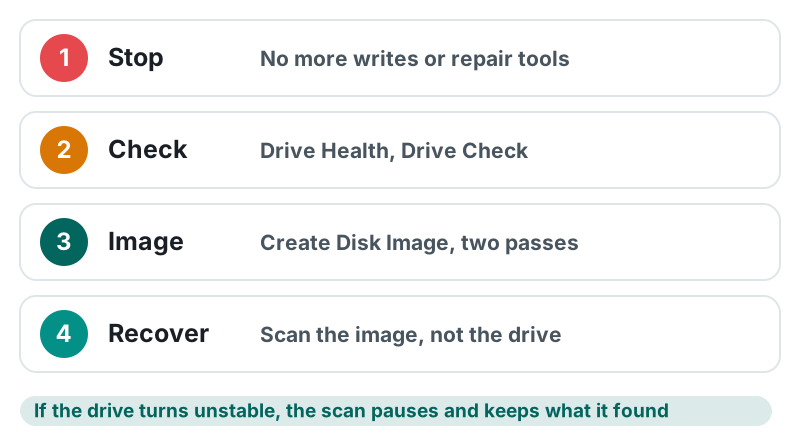
Once you suspect bad sectors, stop using the drive. Do not save new files to it and do not let Windows check or repair it.
Then make a disk image: a sector-by-sector copy of the whole drive into one file on a different, healthy drive. The weak drive is read once, in order and every scan after that runs on the copy.
Good imaging also changes the order of reading. Instead of fighting each bad area as it comes, it copies the healthy areas first and skips ahead when it hits trouble. Only after most of the drive is safe does it go back to the difficult areas and even then it gives up on a sector rather than retrying it forever. If the drive dies during the second pass, you still have everything from the first.
Finally, protect what has already been read. If an image has to be stopped, because the drive got too hot or you needed the computer, it should carry on from where it stopped rather than start again. That way the sectors already copied are not read a second time.
When To Stop And Go To A Recovery Lab
Software can only work with a drive that answers. Some faults are mechanical and no program can fix moving parts. Power the drive off and contact a professional data recovery lab if you notice any of the following:
- Clicking, ticking, grinding or scraping sounds.
- The drive spins up, stops and spins up again in a loop or does not spin at all.
- Beeping from a laptop drive, which can mean the motor cannot start.
- Windows does not detect the drive at all, even with another cable, another port or another computer.
- Reads fail almost everywhere or the number of failed reads keeps growing quickly while you watch.
- The drive was dropped, got wet or was exposed to fire or heavy heat.
How DRE Pro Helps With Bad Sectors
DRE Pro is Windows data recovery software, not a drive repair tool. With a weak drive its job is to show how weak it is, read it gently and get your files off it.
- Drive Health marks concerns in the drive's own S.M.A.R.T. report in plain words. A drive marked Copy It Now should be imaged before anything else.
- Drive Check reads a short sample with no retries. If the drive turns unstable or every read fails, it stops reading and advises a specialist rather than an image and the option to recover from that drive is hidden.
- During a recovery scan, a stability monitor watches for failed, slow and stalled reads. When the drive turns unstable, the scan pauses at once and asks whether to stop and keep the results, continue anyway or stay paused. Nothing found so far is thrown away.
- Create Disk Image copies the drive in two passes over an error map: healthy areas first, bad areas narrowed down and skipped ahead of, then a second pass back over the skipped areas without endless retries. Unreadable sectors are left as zeros in the image and marked in its map.
- A stopped image keeps its map and carries on later from where it stopped, reading only the areas not yet copied. The finished image can be read back and checked against its SHA-256 hash. If the drive drops off USB for a moment, DRE Pro waits for it to come back.
- Honest status: the skip, map, retry-limit and resume steps have been tested on drives with simulated read errors. Testing on drives with real bad sectors is still going on.
- Scan This Image runs Quick Scan, Deep Scan or RAW Scan on the image as often as you need. Each file shows a Recovery Chance of Excellent, Good, Poor or None.
- After a scan, Export HTML Report saves a summary with a warnings section that notes read errors during the scan, without serial numbers or device identifiers.
Common Mistakes With Bad Sectors
- Running a disk check that writes repairs before the files have been copied off.
- Running a full surface scan or a bad sector repair on a drive that is already weak, just to see how bad it is.
- Scanning the original drive again and again with different scan types, instead of imaging it once and scanning the image.
- Saving recovered files back onto the failing drive. Always save them to a different drive.
- Imaging to a destination without enough free space or to another partition on the same physical drive.
- Running a write test on a disk that still holds data. In DRE Pro, Drive Check only reads; the separate Write Test erases the drive.
- Leaving a clicking drive running overnight in the hope that it will finish.
A Safe Step-By-Step Workflow
- Stop using the drive. Do not save anything to it and do not let Windows check or repair it.
- Listen to it. If it clicks, grinds, beeps or will not spin up, power it off and contact a recovery lab.
- Open Drive Health and read the status, the reallocated and pending sector counts and the temperature. If the drive is hot, let it cool down first.
- Run Drive Check with the Quick profile. If the verdict is consult a specialist, stop here.
- If the verdict is fine to scan and Drive Health shows Healthy, you can scan the drive directly. The scan still pauses and asks if the drive turns unstable.
- If the verdict is image first or Drive Health shows Warning or Copy It Now, connect a healthy drive with free space at least the size of the whole weak drive.
- Open Disk Tools, choose Create Disk Image, pick the weak drive as the source and a folder on the healthy drive as the destination. Leave both drives alone until it finishes.
- Press Scan This Image and run Quick Scan first. If something is missing, run Deep Scan or RAW Scan on the same image.
- Check files with the preview, then save them to a third place, not onto the weak drive and not over the image.
- Keep the image until every file has been opened from its new place. Then replace the weak drive.
Can Bad Sectors Be Repaired?
A logical bad sector can usually be made readable again by writing to it and the drive can swap a physical one for a spare. Either way, the data that was in that sector is lost and the writing strains a weak drive. Get your files off first. DRE Pro does not repair bad sectors, on purpose.
Can I Recover Data From A Hard Drive With Bad Sectors?
Often, yes, as long as the drive is still detected and still reads in most places. Files in healthy areas can be recovered normally. Files that cross a bad area may be partly damaged, because a sector the drive will not give up is left as zeros in the image. Image the drive first, then scan the image.
Does One Bad Sector Mean The Drive Is Failing?
Not necessarily. A small reallocated count that stays the same for months is common on older drives. A count that rises or new read errors, mean it is time to back up and replace the drive.
How Long Does A Hard Disk Bad Sector Check Take?
A full surface scan reads every sector and takes hours on a large hard drive. DRE Pro's Drive Check reads a sample in under a minute, about two minutes or about five minutes, depending on the profile. It is meant to decide whether recovery is safe, not to certify a drive as free of bad sectors.
Do SSDs Get Bad Sectors Too?
SSDs have no platters or heads, but their flash cells wear out and can fail to read. The drive retires worn blocks on its own and reports its wear in its S.M.A.R.T. data, which Drive Health shows where the drive reports it. The same rule applies: back up or image first, never repair first.