
 Data Recovery Software
 Hard Drive Data Recovery
 SSD Data Recovery
 Deleted File Recovery
 Pen Drive Gone Blank
 Memory Card Not Opening
 External Hard Disk

Lost Partition Recovery: A Complete Disk Scanning Guide
A drive letter vanishes from This PC. Disk Management shows unallocated space where the partition used to be or lists it as RAW and Windows offers to format it. It looks as if everything has gone. In most cases the files have not moved at all. What was lost is a few sectors of bookkeeping that told Windows where the partition starts, where it ends and how its contents are laid out.
This guide explains how that bookkeeping works, how it gets lost, which mistakes make things worse and how disk scanning finds a lost volume again. It does not repeat how Quick Scan, Deep Scan and RAW Scan differ; that has its own article, linked at the end. Here the focus is the partition itself.
What A Partition Table Is
A disk is a long row of numbered sectors. The partition table, at the start of the disk, divides that row into partitions and records where each one begins, how long it is and what type it is. If the entry for a partition is missing, Windows does not know a partition exists there and shows the space as unallocated, even though every file is still in it.
Older disks use the MBR layout. Its table sits in the first sector and has room for four primary entries, with an extended partition to chain more. MBR keeps no copy of its table, so if that sector is overwritten, the map is gone.
Newer disks use GPT. It keeps a header and a list of partition entries near the start of the disk and a backup header with a second copy of the list in the last sectors. Each header carries checksums, so damage can be noticed. When the start of a GPT disk is wiped, the copy at the end often still describes every partition.
Boot Sectors And Superblocks: The Volume's Own Map
Inside each partition, the file system keeps its own description of itself. On NTFS, FAT and exFAT this is the boot sector, the first sector of the volume. It says which file system it is, how big the volume and its clusters are and where the main tables start. On NTFS the main table is the Master File Table, the MFT, which holds a record for every file and folder, including many that were deleted. Linux ext file systems call the same structure a superblock and Mac HFS+ calls it the volume header.
Most file systems keep a spare. NTFS writes a backup copy of its boot sector at the end of the volume. FAT32 keeps one a few sectors after the first and exFAT keeps a backup boot region. The ext file systems store backup superblocks in block groups across the volume and HFS+ keeps an alternate volume header near its end. These copies are what make recovery possible when both the partition table and the start of a volume are damaged.
How Partitions Get Lost
In each case the data area is usually untouched. What has gone is the map at the start of the disk and sometimes the start of the volume with it.
- Deleted by mistake in Disk Management. The entry goes; the data area is left alone.
- Table overwritten by a virus, a failing disk or a program writing to the wrong disk.
- Disk initialised. Windows asks to initialise a disk it cannot read, someone clicks OK and a new, empty table replaces the old one.
- Wrong conversion between MBR and GPT or between basic and dynamic, by a method that clears the table first.
- Failed resize or merge. A power cut or crash halfway through leaves the table and the data out of step.
- Windows installed on the wrong disk, removing and recreating its partitions.
- NAS or RAID reset. A NAS that is reset or reinitialised writes new records over the start of its disks.
- Cloned from part of a disk. A copy of one partition on a new disk has the data but no partition table.
Symptoms Of A Lost Partition
Unallocated and RAW mean different things. Unallocated means the table has no entry for that space, so the job is to find the partition. RAW means there is an entry, but the boot sector or file system inside cannot be read, so the job is to read the volume despite the damage. A disk that shows 0 bytes or a size that makes no sense is another matter: its controller has failed and no software can read past it.
- A drive letter is missing from This PC, while the disk still appears in Disk Management.
- Disk Management shows unallocated space where a partition used to be.
- The partition is listed, but its file system shows as RAW and it will not open.
- Windows says the drive must be formatted or asks to initialise a disk that had data on it.
- The disk shows its full size but no partitions at all, often after cloning.
What Not To Do
Do nothing that writes to the disk. Initialising it, creating a partition, formatting, running a repair or saving files to it all write over the tables and boot sectors a scan needs to find the lost partition. Reading cannot make a lost partition worse; writing can. The usual mistakes:
- Do not initialise the disk. It writes a new, empty partition table over the old one.
- Do not create a new partition in the unallocated space. It writes a new boot sector and new tables into the very area you want back.
- Do not format. A quick format replaces the file system's tables; a full format on Windows Vista and later also writes zeros over the partition.
- Do not run a repair that writes, such as Windows' offer to scan and fix the drive. It rewrites the tables and can delete entries it does not understand.
- Do not install recovery software on the affected disk or save recovered files to it.
- Do not keep retrying a disk that clicks, stalls or drops off. Copy it to an image first.
How Disk Scanning Finds A Lost Volume
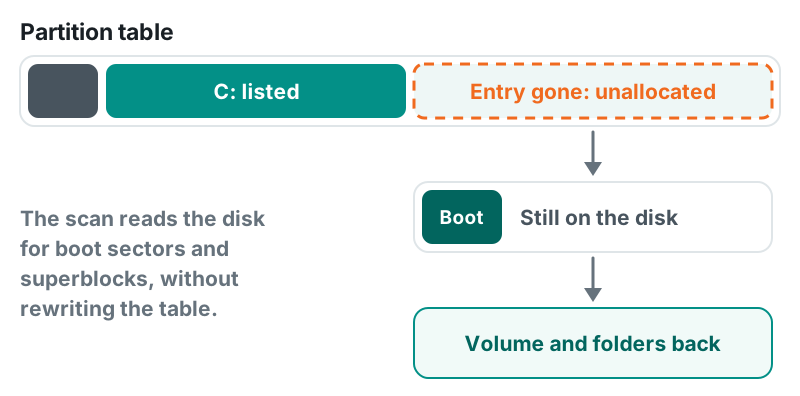
A partition search ignores the partition table and looks at the disk itself. Every file system begins with a structure that can be recognised: an NTFS boot sector carries the name NTFS and a fixed end signature, FAT and exFAT boot sectors have fixed layouts and an ext superblock holds a magic number at a known place. The search reads sectors, looks for these markers and treats each one as a possible volume.
A marker alone is not proof. Boot sectors survive from partitions deleted years ago and a backup copy at the end of a volume looks just like the original at its start. A careful search checks that a candidate makes sense: that its stated size fits on the disk and that the tables it points to are where it says. Most partitions also start on predictable boundaries, so looking there first finds the common cases in seconds, while partitions in unusual places need a read of every sector.
DRE Pro's Partition Recovery, under Tools, works in these two steps. Quick Search looks where partitions usually start and lists the NTFS, FAT and exFAT partitions it finds in seconds, each with its file system, start, end and size. Deep Search reads every sector for partitions in unusual places, such as after a failed resize or a partition table written over. Both work on MBR disks, GPT disks and disks with no partition table at all; since version 0.10.0, such a disk has its partitions found in seconds instead of a long search.
When the start of a volume is damaged, the backup copies are the way in. DRE Pro opens an NTFS volume whose boot sector is gone from its backup copy, in memory only. An ext4 volume whose start was wiped, as a NAS reset can leave it, is opened from the backup copies of its superblock and shown as damaged ext4 rather than unrecognised. Since version 0.10.2, the root folder of such a volume is found by its own entries, so the folders under it keep their names.
Partition Search Versus File Scan
A partition search asks where the volumes are. A file scan asks what files are inside a volume or inside the whole disk.
When a partition was only deleted or lost, its file system is still whole. Find the partition and its own tables give back every folder, name and date, quickly. A file scan of the whole disk would also find the files, but it takes hours on a large disk and files found by their contents alone lose their names. So search for the partition first and scan only when it was also formatted, when its tables are damaged or when the search finds nothing.
The two methods also meet. In DRE Pro, a Deep Scan opens any lost NTFS, FAT, exFAT, ext2, ext3, ext4 or HFS+ partition it meets outside the known partitions and lists its files, live ones included. It also finds lost XFS, Btrfs, ReFS, F2FS and UFS partitions and the report says how each one was found.
Recovering Files And The Folder Tree Without Rewriting The Table
Many people expect partition recovery to mean writing the old entry back into the partition table. That changes the disk before a single file is safe and if the found partition is wrong or only partly intact, it can make matters worse.
DRE Pro only reads the disk you recover from and its partition table is never changed. Press Browse Files on a found partition and DRE Pro opens that partition's own file table without a scan: every folder and file, live and deleted, as the partition last knew them. Tick what you need and save it to a different disk. Quick Scan Now and Deep Scan Now scan inside the partition when you need more.
On NTFS the folder tree comes from the MFT. DRE Pro's Folder Tree reads the whole MFT and rebuilds the folders in memory, with deleted entries in their original places and a status on each: Live, Recoverable, Partly Recoverable, Unknown or Overwritten. The MFT is never repaired or written. With the Professional or Enterprise edition, the tree can be exported as an HTML report without serial numbers or device identifiers.
File Systems DRE Pro Recognises
Files on a volume too damaged to read from its records can still be found by Deep Scan and RAW Scan from their contents, without their original names.
- Partition Recovery, Quick Search and Deep Search: NTFS, FAT and exFAT, on MBR and GPT disks or disks with no partition table.
- Deep Scan: also opens lost ext2, ext3, ext4 and HFS+ partitions it meets and finds lost XFS, Btrfs, ReFS, F2FS and UFS partitions.
- Read from their own records: NTFS, FAT, exFAT and ReFS; APFS and HFS+ from Macs; ext2, ext3, ext4, XFS, Btrfs, F2FS and ZFS from Linux, NAS boxes and Android; UFS from the BSDs; UDF and ISO 9660 discs.
- NAS and RAID: Linux md RAID, LVM2 and Synology SHR are put together from the member disks, read-only, before the volume inside is read. RAID recovery comes with the Enterprise edition.
- Encrypted volumes are listed with the reason and read once unlocked with their own password or key.
Common Problems And How To Read Them
Overlapping candidates. A search can find two partitions covering the same sectors, such as an old partition and the one that replaced it. Compare each one's start, end and size with what you remember, then open each with Browse Files and look for the folders you expect. Because nothing is written to the disk, a wrong first choice costs a minute, not the data.
A damaged start. When the first sectors of a volume are gone, a backup boot sector or superblock is the way in. If the tables they point to are damaged too, a Deep Scan of the partition finds what it can and files found only by their contents come back without names.
A partly overwritten volume. If a new partition was created in the space and filled, everything under the new files is gone, but the rest of the old volume can still be read. DRE Pro marks a file whose space was reused as Overwritten, so you do not pay for a file that opens as rubbish.
Formatted, not just lost. DRE Pro shows a quick-formatted partition as the file system it had before, a lost NTFS partition with its folders and names and checks each file for what the format wrote over.
A weak disk or an SSD. A partition that vanished on its own can be the first sign of a failing disk; if Drive Health shows Warning or Failing, image the disk and search the image. On an SSD, TRIM may clear a deleted partition's blocks, which then read back as zeros, so search as soon as you can.
A Step-By-Step Workflow
- Stop using the disk. Close any Windows message that offers to format or initialise it.
- Install DRE Pro on a different disk and run it as administrator. Reading the disk itself needs it.
- Check the disk. Drive Check looks at the partition table, each volume's boot sector and the device and only reads. If Drive Health shows Warning or Failing, make a disk image on another drive and work on the image.
- Open Partition Recovery under Tools, pick the disk and press Quick Search. If the partition is not listed, run Deep Search and let it finish.
- Check each partition found against the size and position you expect, then press Browse Files and look for your folders.
- Tick the folders and files you need, preview a few and save them to a different disk.
- If the partition was also formatted or Browse Files shows little, run Deep Scan Now inside it.
- Only when everything is safe elsewhere, repartition, format or repair the old disk.
Can A Deleted Partition Be Recovered?
Usually, if no new partition was created in its place and filled with files. Deleting a partition removes its entry from the table; the data stays where it was until something else is written there.
Why Does My Disk Show Unallocated Space?
The partition table no longer has an entry for that space, because it was deleted, overwritten or replaced when the disk was initialised. The files are still in it. Do not create a partition there; search it for the lost one instead.
Does DRE Pro Rebuild The Partition Table?
No. It never writes to the disk you recover from. It finds the partition, opens its files and saves them to another disk. Once they are safe, you can repartition the old disk as you like.
Can RAW Partition Recovery Bring Back Folder Names?
Often. A RAW partition usually has a damaged boot sector or tables, not missing files. Where the file system records can still be read, even in part, names and folders come back. Files found only by their contents come back without names.
Is Lost Partition Recovery Free?
Searching for lost partitions, opening their folders and previewing files is free. Saving the files needs a licence. Lost and deleted partition recovery is part of every edition, Basic included.